

Documentation Index
Fetch the complete documentation index at: https://moengage-getz-tagging-workspace-status.mintlify.app/llms.txt
Use this file to discover all available pages before exploring further.
Overview
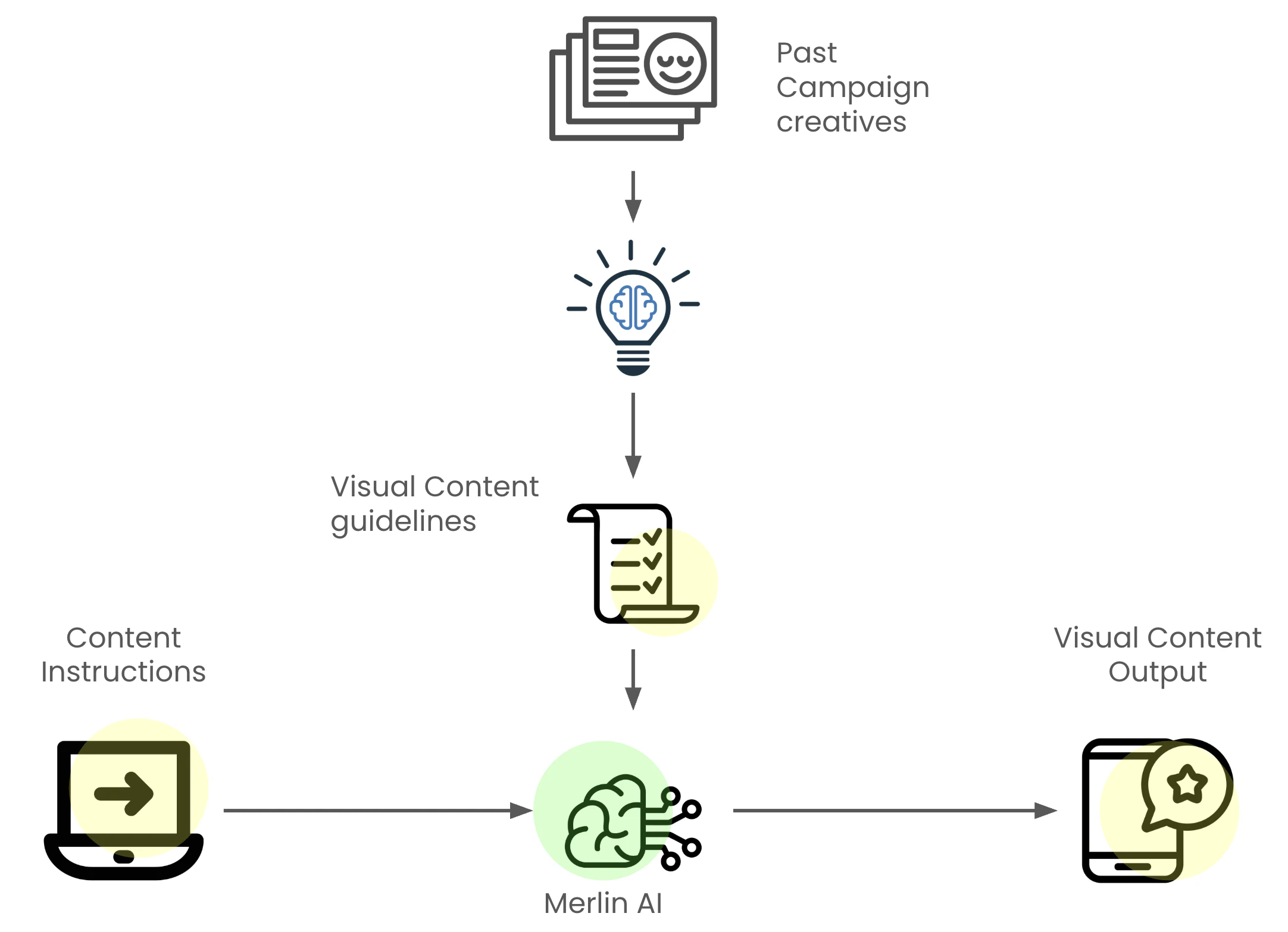
Merlin AI employs a combination of language and Image Generation Models to create unique marketing banners from the provided image description. Merlin AI Designer enables the quick testing of various visual strategies with these creative banners, which can be produced in just seconds. So, what sets it apart?- Brand content guidelines: Merlin AI learns your unique visual identity by analyzing past campaigns. It then automatically generates new, on-brand creatives, ensuring a cohesive and recognizable brand experience across all touchpoints.
- Prompt enhancer: Transform simple ideas into stunning visuals. Our integrated prompt enhancer intelligently refines your basic image descriptions, adding rich detail and nuance to ensure the final image perfectly captures your creative vision.
- Flawless text rendering: Create banners with crisp, clear, and perfectly rendered text. Merlin AI ensures that your message is always legible and visually appealing.
- Multilingual support: Merlin AI’s multilingual support allows you to generate banners with text in various languages, making it easy to create highly targeted, localized campaigns that resonate deeply within a specific geography.
- Hero product focus: Generate images that are centered around your hero product. Simply provide an image of your product, and Merlin AI will create a variety of banners that showcase it in the best possible light.
Merlin AI Designer is currently supported in Push campaigns for Basic and Stylized Basic templates.
Brand Design Guidelines
Merlin AI Designer ensures that every visual generated is a perfect reflection of your brand’s aesthetic, maintaining a cohesive look and feel across all touchpoints. It accomplishes this by analyzing your existing creative assets and applying those visual principles to new generations.- Learning from Visual Assets: Merlin AI Designer begins by understanding the Industry Vertical of your workspace. Through an automated, asynchronous process, it scans your uploaded image gallery and previously used campaign templates to identify recurring visual patterns and design choices.
- Design Guidelines: It codifies your brand’s visual DNA by deriving five core parameters:
- Brand Color Palette: Identifies your primary and secondary colors to ensure color harmony.
- Visual Style & Mood: Captures the overall “vibe”—whether it’s minimalist, vibrant, professional, or energetic.
- Background Elements: Recognizes preferred textures, gradients, or compositional framing.
- Imagery Style: Distinguishes between your use of photography, 3D renders, or flat illustrations.
- Typography Guidelines: Analyzes font weights and text placement used in your previous creatives.
- Generating On-Brand Visuals: When a marketer enters new Visual Instructions (prompts) for a creative, Merlin AI Designer blends those specific requirements with the learned Brand Design Guidelines.
This process ensures that every generated image—from push icons to email banners—is instantly recognizable as your brand, eliminating the need for manual design reviews or style guide lookups.
Navigation
To access Merlin AI in the MoEngage dashboard, follow these steps:- On the sidebar menu in MoEngage, hover over the Engage menu item
 . The Engage menu appears.
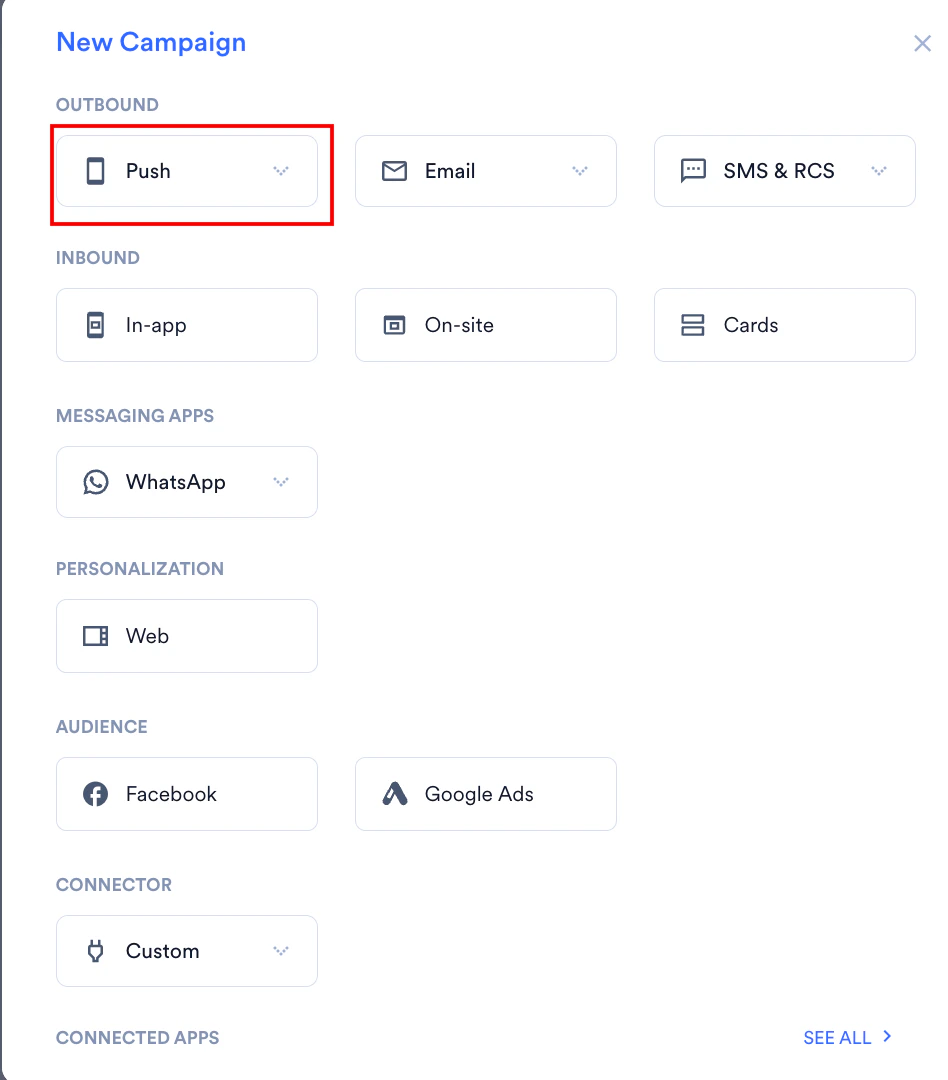
 - Click + New Campaign.

- On the New Campaign dialog box, under OUTBOUND, click Push.
- Click one of the following campaign delivery types:
- One Time
- Periodic
- Event Triggered
- Business Event Triggered
- Device Triggered
- Location Triggered For more information about delivery types, refer to Delivery Types.
- Configure your basic campaign details in the first step.
- In the second step of Content, choose either Basic notification or Stylized basic Push campaign template.
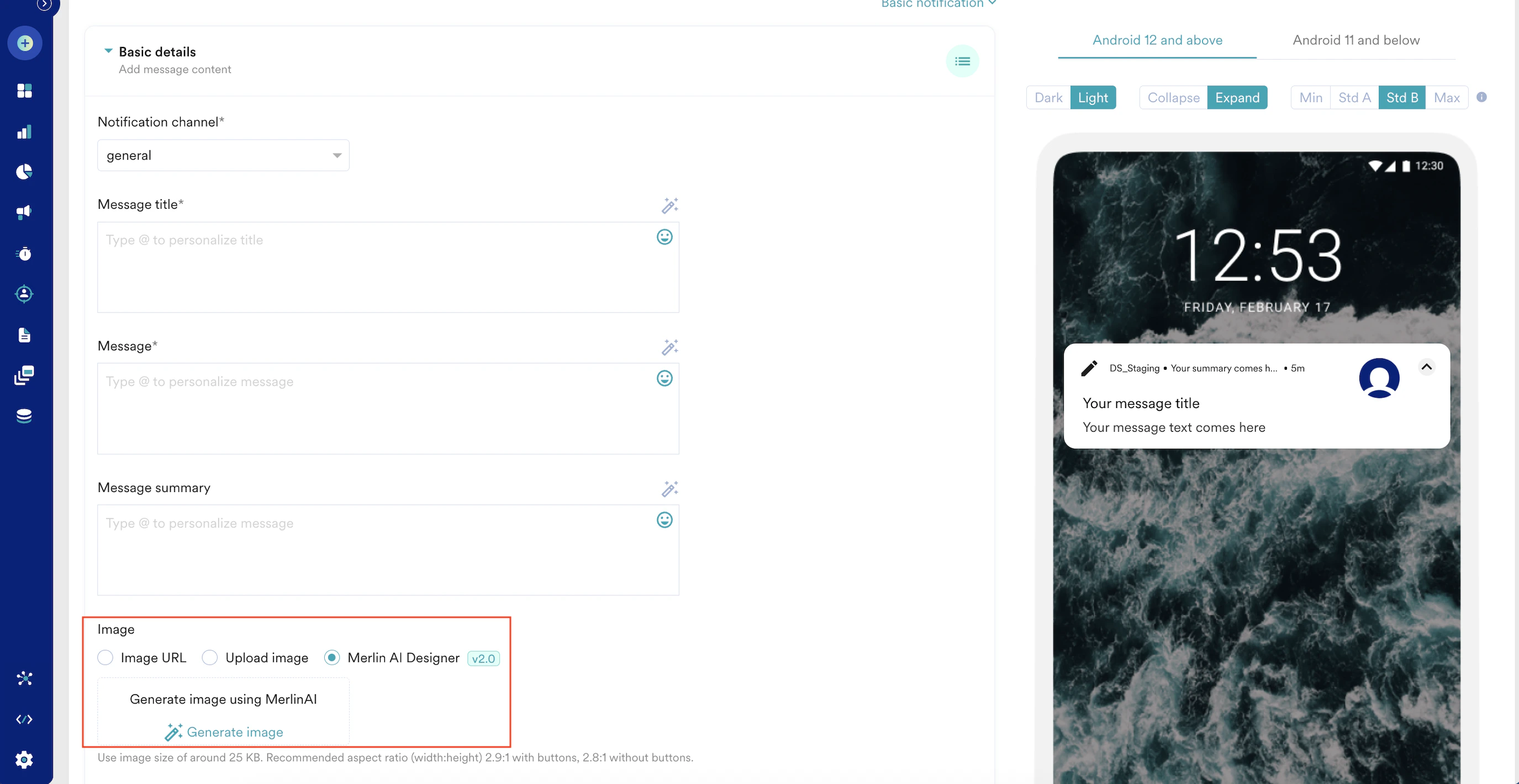
You can access Merlin AI Designer in two ways:- Click Create new in the Merlin AI banner at the top of the page.

- In the Image section, select the Generate image option within the section.
- Click Create new in the Merlin AI banner at the top of the page.
Generate Banners for Push Campaigns
To create a completely new visual based only on your text description, perform the following steps:
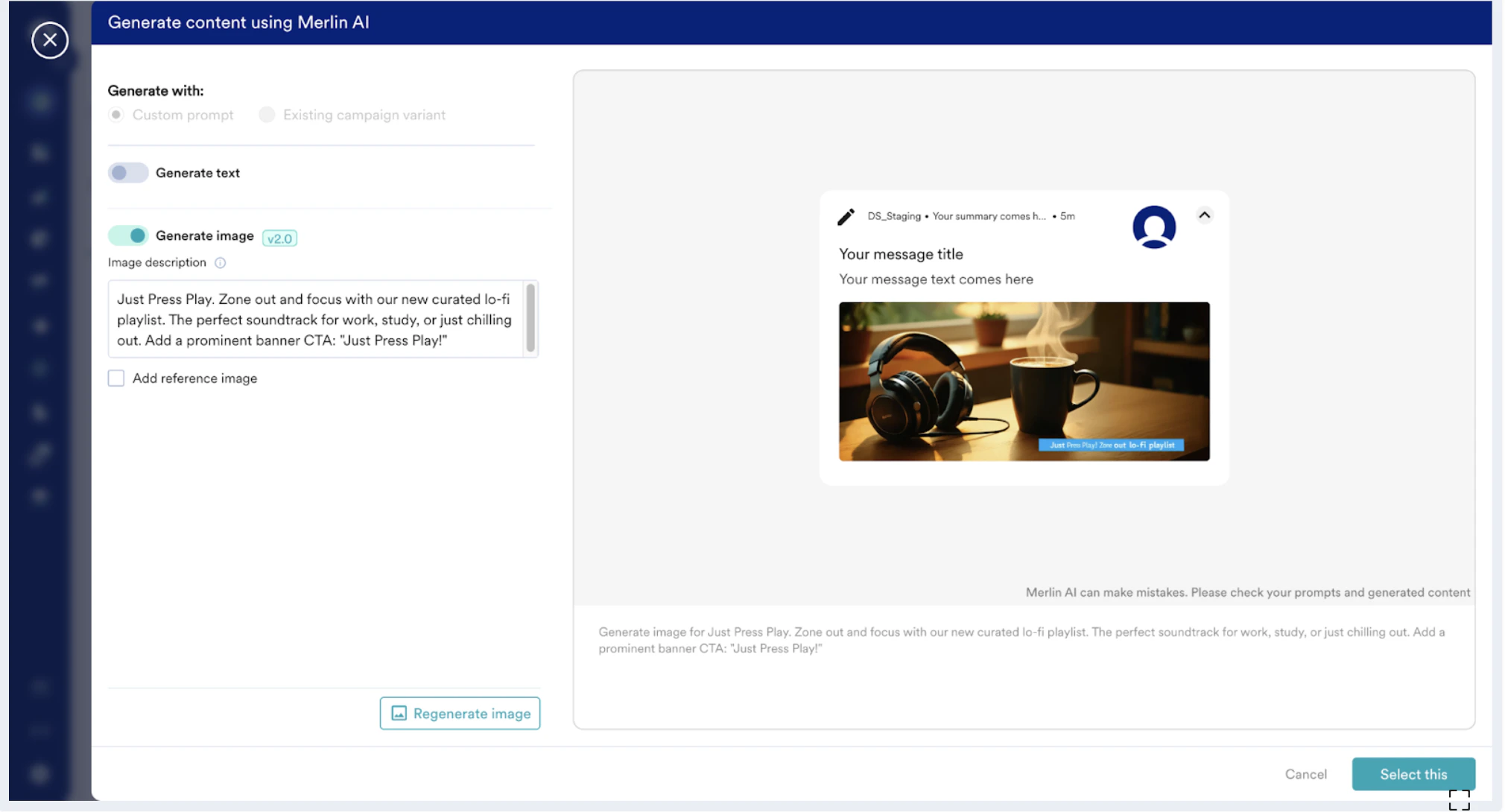
- Turn the Generate image toggle on.
- In the Image description box, describe the image you want to create. Be as detailed as possible and include any desired text or a call-to-action (CTA).
- Click Generate. To see a new variation, click Regenerate image.
- To browse through previously generated images, use the pagination buttons at the bottom of the preview.
- When you find an image you like, click Select this. The banner will be applied to your push campaign content.
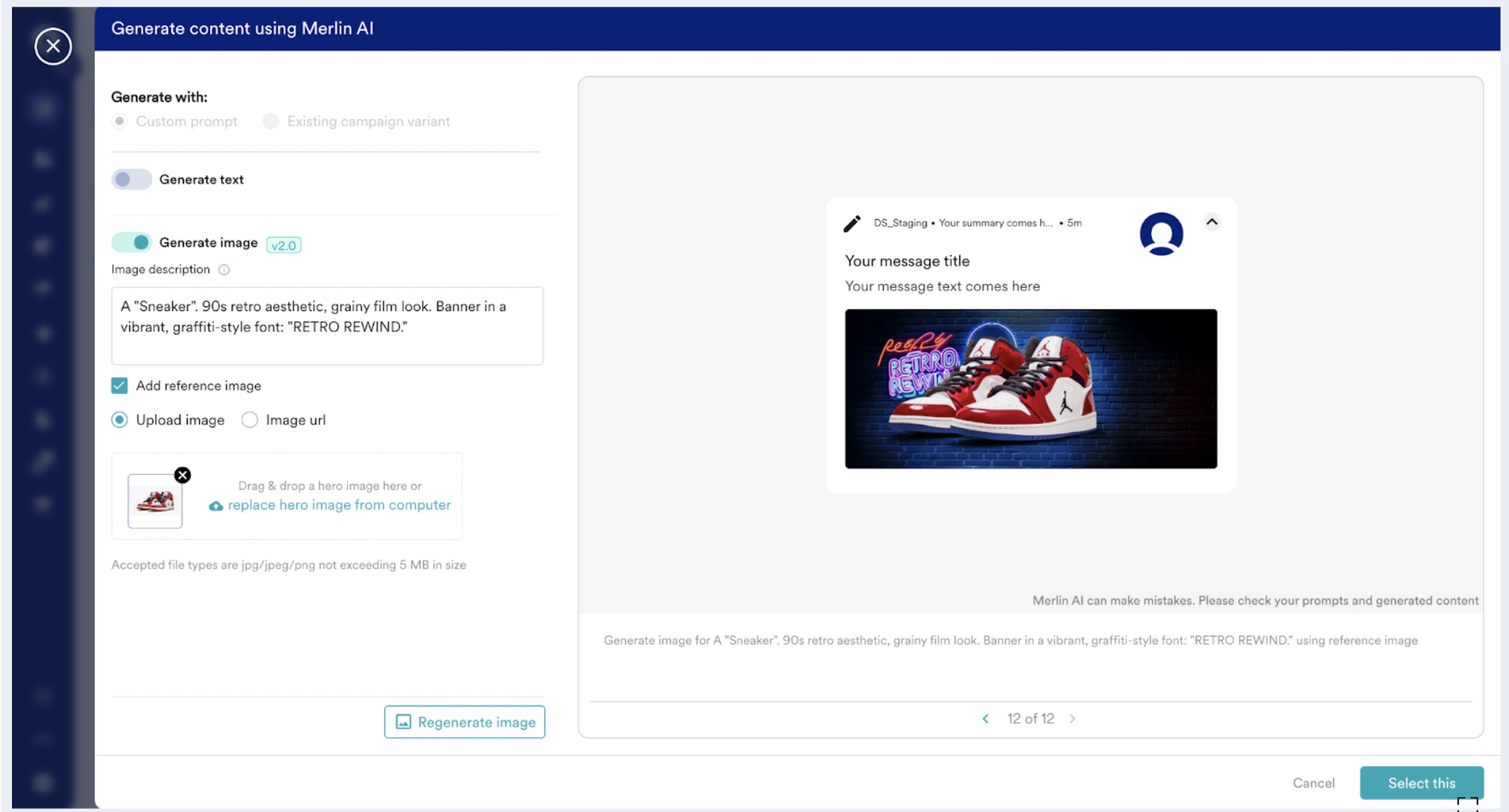
- You can create up to 20 images in a campaign using Merlin AI.
- You can generate up to 100 images per month. Contact your CSM (Customer Success Manager) for higher limits.
- The quality of the generated image depends directly on the clarity and detail of your prompt.
- If you’re adding a reference image, make sure the reference image is in .jpg, .jpeg, or .png format.