

After installing MoEngage on your Shopify store, validate the integration for seamless tracking of user events and data. Use the steps below to validate your MoEngage < > Shopify integration:Documentation Index
Fetch the complete documentation index at: https://moengage-getz-tagging-workspace-status.mintlify.app/llms.txt
Use this file to discover all available pages before exploring further.
- Install the MoEngage Chrome plugin.
- Open your Shopify store on a new browser (or hard refresh).
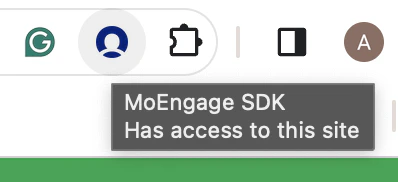
- Verify whether your website is loading the MoEngage SDK:
- If not, try un-saving and saving the app embed block settings in the App theme settings. The website may not load the MoEngage SDK if the integration steps are not followed consistently.
- If the issue persists, check the console log for errors.
- Contact MoEngage support if the above solutions don’t work.
- Once the MoEngage SDK is loaded, perform the Product view and Add to Cart events to check if MoEngage is successfully tracking data in your app settings.
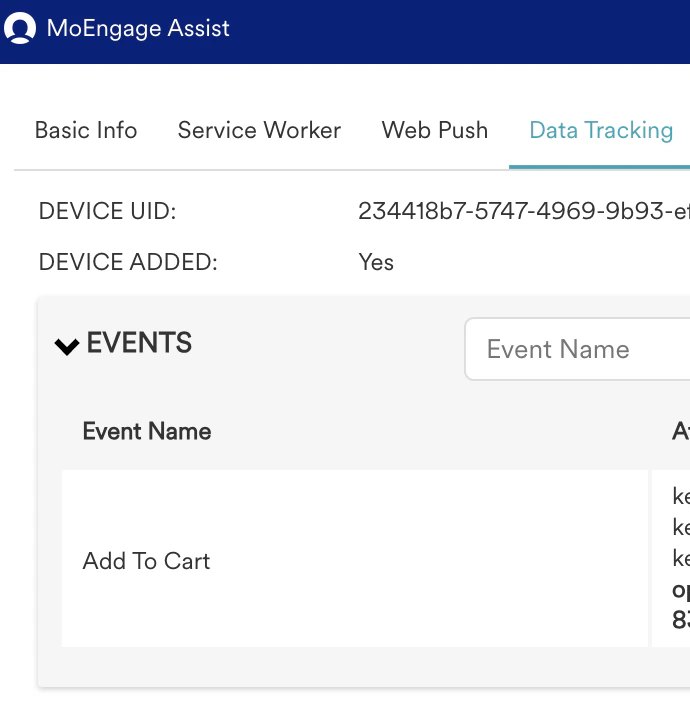
- While the Product view and Add to Cart events are being tracked properly, ensure to check if the cart token user attribute is getting set or not.
