Documentation Index
Fetch the complete documentation index at: https://moengage-getz-tagging-workspace-status.mintlify.app/llms.txt
Use this file to discover all available pages before exploring further.
Overview
The MoEngage Assist Chrome extension is a dedicated debugging tool designed to help developers and marketers monitor and troubleshoot their MoEngage Web SDK integration and implementation. Install the extension to validate and debug your Web SDK integration directly from your browser. With this extension, you can:- Verify service worker registration.
- Confirm push token generation.
- Inspect event tracking in real time.
- Troubleshoot and debug implementation issues.
- Access campaigns and related features.
Installation Steps
- Navigate to the Chrome Web Store.
- Search for MoEngage Assist.
- Select Add to Chrome to install the extension.
- Pin the extension to your browser toolbar for quick access.
If the MoEngage Web SDK is not installed on the active webpage, the extension displays an “SDK not found” state. For more information on integrating the Web SDK, see Web SDK Integration.
Extension Tabs
When the Web SDK is successfully integrated, the extension populates operational data across the following four tabs.Issues
The Issues tab highlights critical integration or configuration errors that require immediate attention. Use the Filter by issue category drop-down menu to sort the displayed errors. Categories include:- Setup: Highlights foundational configuration errors (for example, Web Push failing in HTTP mode, missing service worker files, or unsupported Promises requiring polyfills).
- Track: Identifies data collection anomalies (for example, passing empty objects as attribute values, missing attribute strings, or blank notification titles).
- Info: Flags campaign-delivery errors (for example, attempting to track a card ID that has not been received or has been deleted).
Setup Info
Validate the foundational configuration and environment details of your MoEngage workspace directly from the browser. The Setup Info tab provides a comprehensive overview of your Web SDK implementation, structured into the following sections: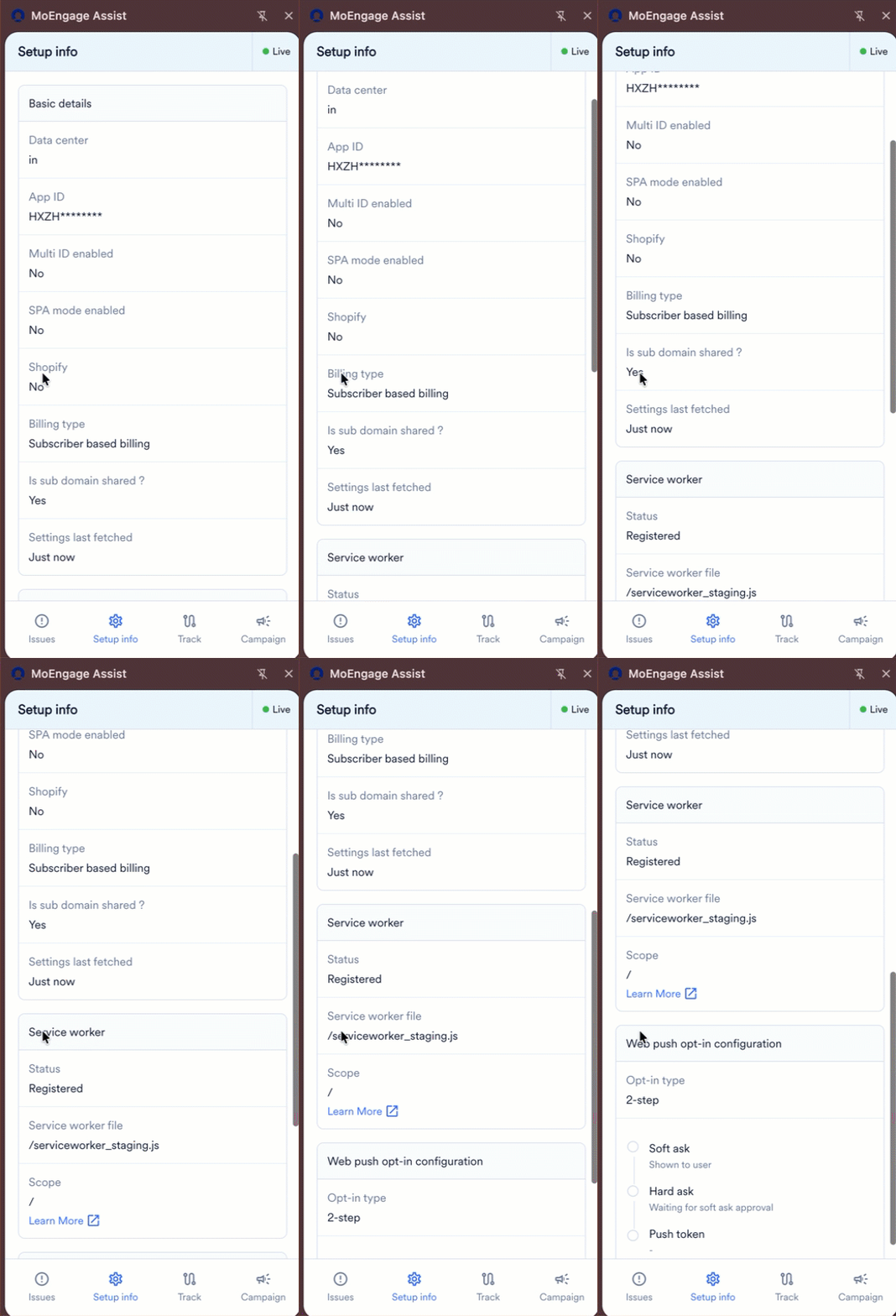
- Basic Details
- Service Worker
- Web Push Opt-in Configuration
Displays core workspace metadata and configuration statuses, including:
- Data center: The region where your data is hosted.
- App ID: Your unique workspace identifier.
- Multi ID enabled: Indicates whether the Multi-ID tracking feature is active.
- SPA mode enabled: Indicates whether Single Page Application tracking is enabled.
- Shopify: Indicates whether moengage is integrated in the shopify website or not.
- Billing type: Outlines your active subscription model ( Subscriber based billing).
- Is sub domain shared?: Indicates whether the configuration supports shared sub-domains.
- Settings last fetched: Shows the relative timestamp of the most recent SDK configuration sync (for example, Just now).
Track
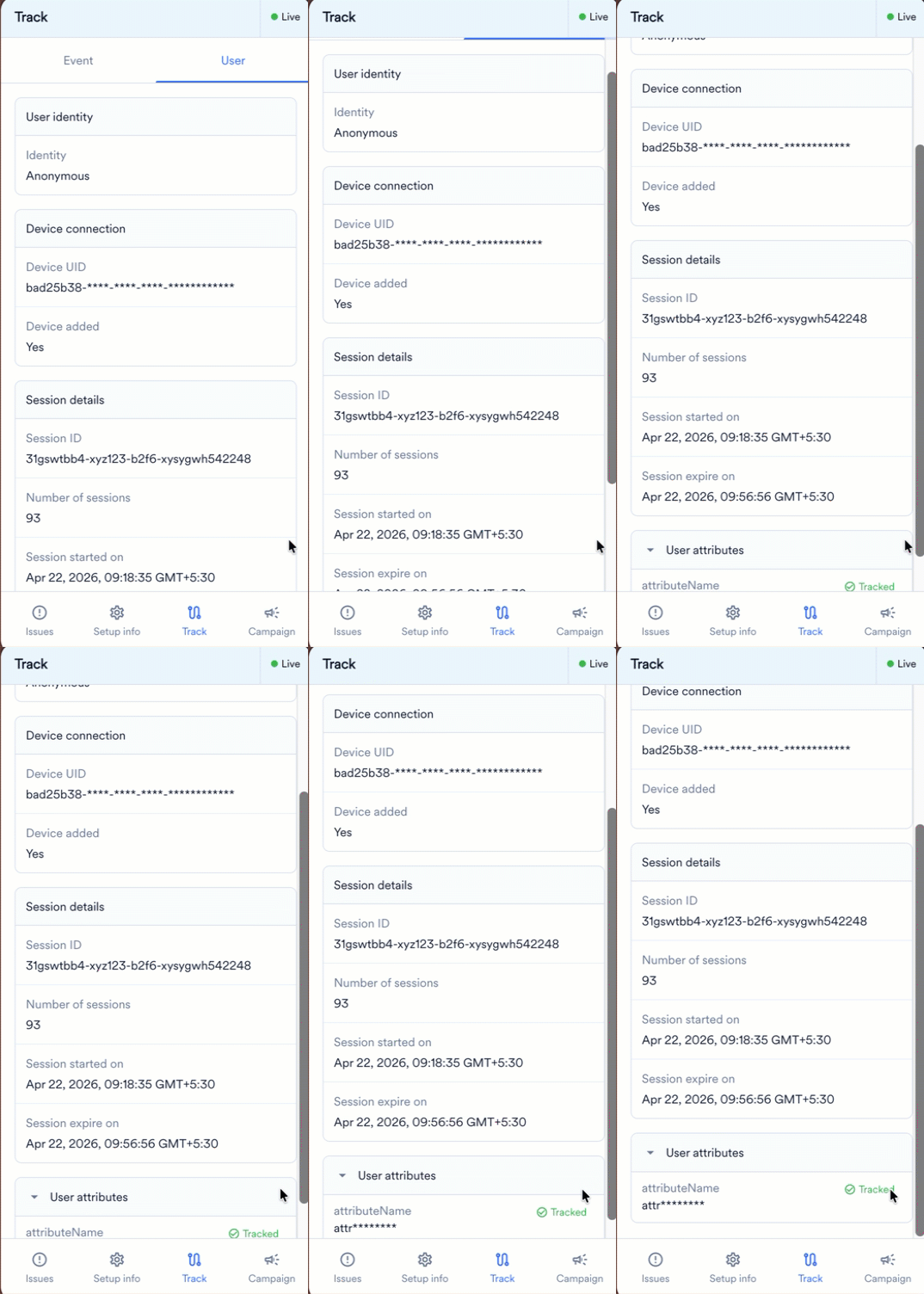
The Track tab monitors real-time data collection payloads and validates the event stream for the active session. It is divided into two sub-tabs:- Event
- User
- Event
- User
Monitors live behavioral and system events being tracked on the current page.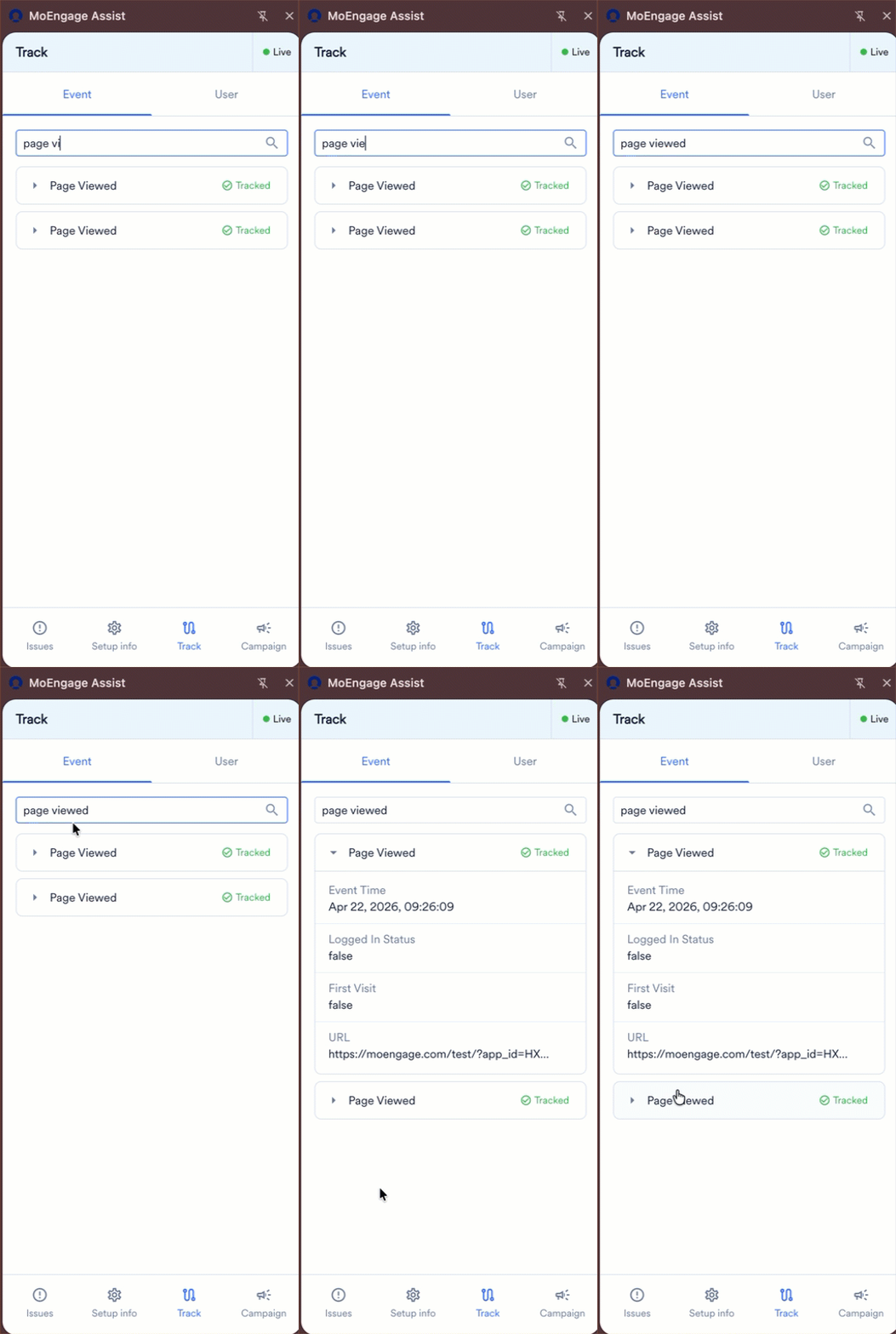
- Search and Filter: Use the dedicated search bar to quickly filter the live stream by a specific event name or attribute.
- Status Indicators: Successfully captured event payloads display a green Tracked badge next to the event name.
- Payload Validation: Select any tracked event to expand its payload and inspect the underlying key-value pairs. Depending on the specific event type (such as on-site messaging interactions or page views), you can validate detailed parameters, including:
- Campaign Metadata: Identifiers such as campaign_id, campaign_name, and cid.
- Execution Properties: Configuration details such as Variation ID, Locale Name, Locale ID, and targeted Campaign Tags.
- User Context: Session-specific booleans and strings evaluated at the time of the event, such as Logged In Status, First Visit, and the active URL.
Campaign
The Campaign tab enables you to debug and inspect active campaigns targeted at the current user session. It is categorized by channel type:- OSM (On-Site Messaging)
- Web Personalization
- Cards
- Status, Template Type (for example, POP_UP), Expiry Time, and Updated Time.
- Priority levels and behavioral configurations (for example, blocking, scrollable, sticky).
- The complete campaign payload, which can be copied directly to your clipboard for further analysis.

- Select the View in Dashboard link within the Campaign details panel to open the specific campaign configuration directly within your MoEngage workspace.
- If a specific module or feature has not been integrated within your Web SDK implementation, MoEngage Assist displays a descriptive error state to assist with troubleshooting. For example, if the OSM module is missing, the extension indicates: “OSM not integrated. To start seeing campaigns, please integrate the OSM module on your website.”
- Campaign status: Tracks current eligibility and delivery metrics.
- Validates Page eligibility and Display status.
- Displays the total page view impressions for the current load and the lifetime impressions.
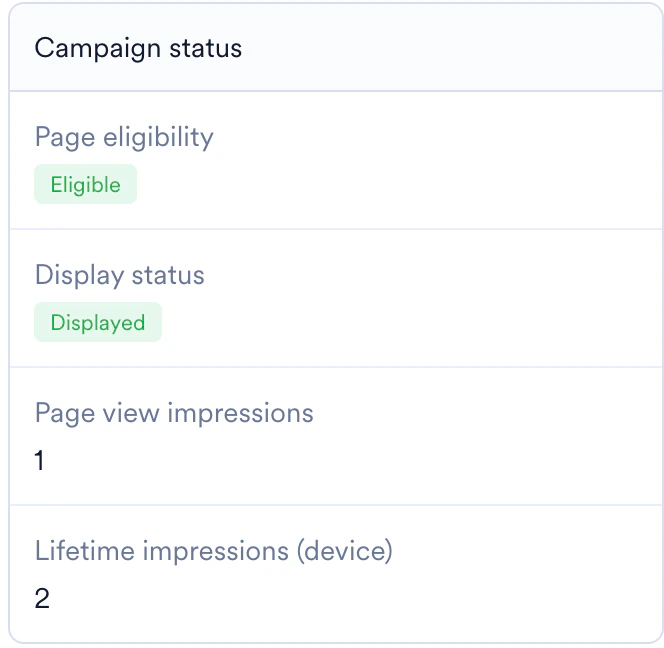
- Campaign properties: Outlines the core structural configuration and rendering behavior defined in the campaign setup.
- Metadata: Includes Template type (for example, POP_UP), Expiry time, Updated time, and Priority.
- Rendering Rules: Details specific UI/UX constraints such as Max show count, Auto dismiss after, Delay between same campaign, Blocking, Scrollable, and Sticky flags.
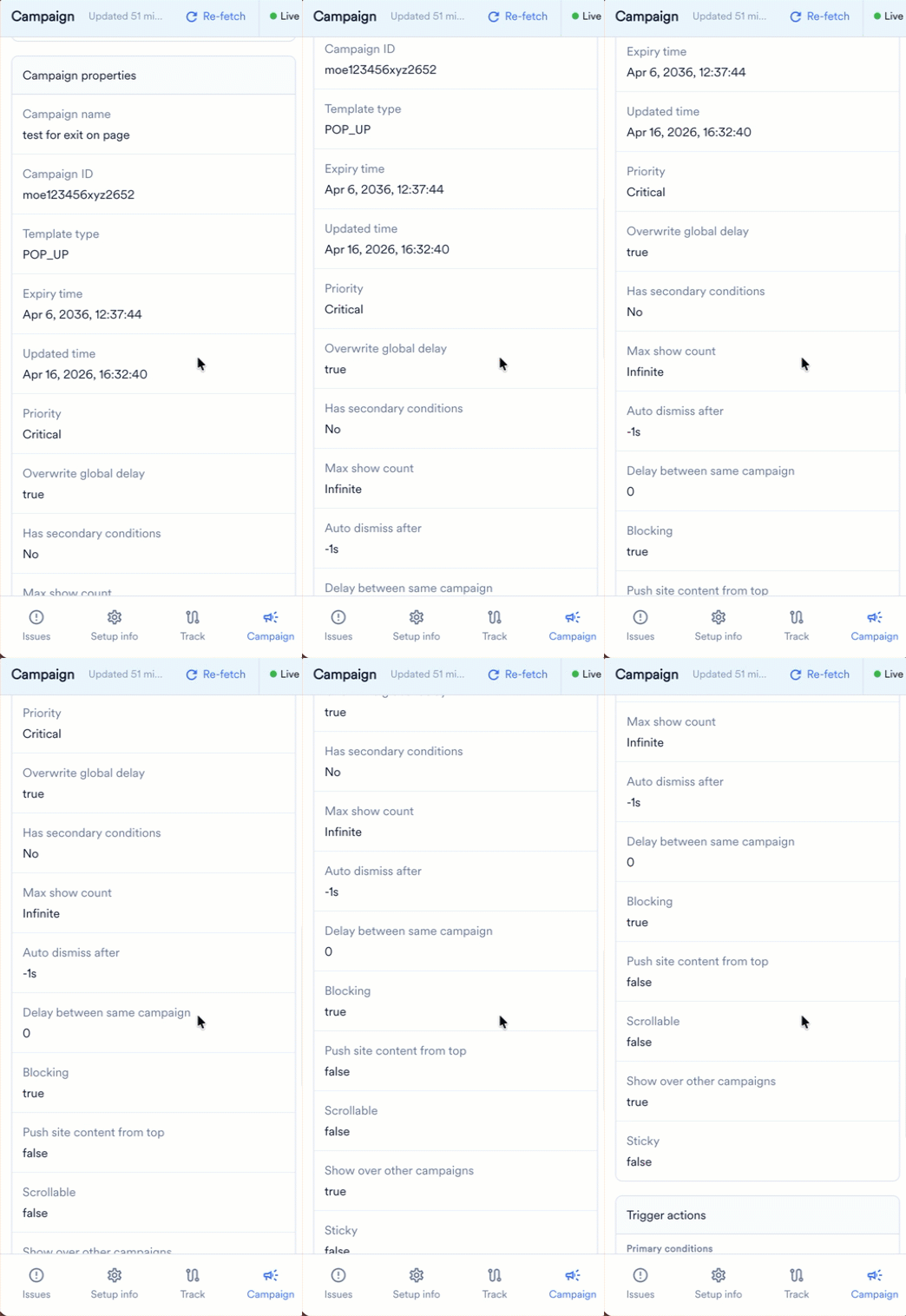
- Trigger actions: Details the specific behavioral conditions required to execute the campaign.
- Identifies the evaluated Primary event (for example, MOE_PAGE_EXIT) and confirms its trigger status.
- Displays the rule description and the configured Trigger delay (for example, Immediately).
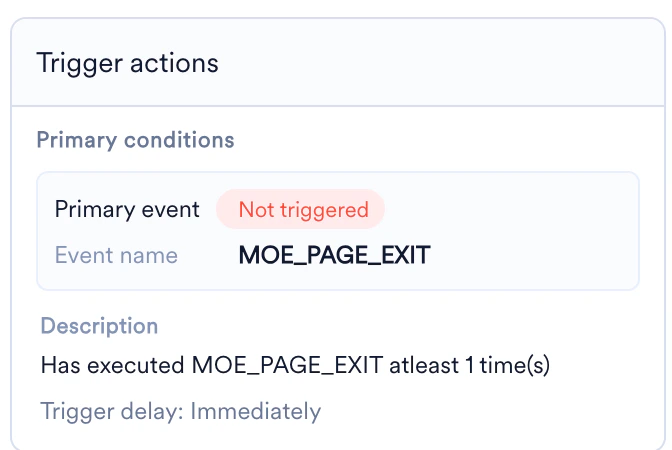
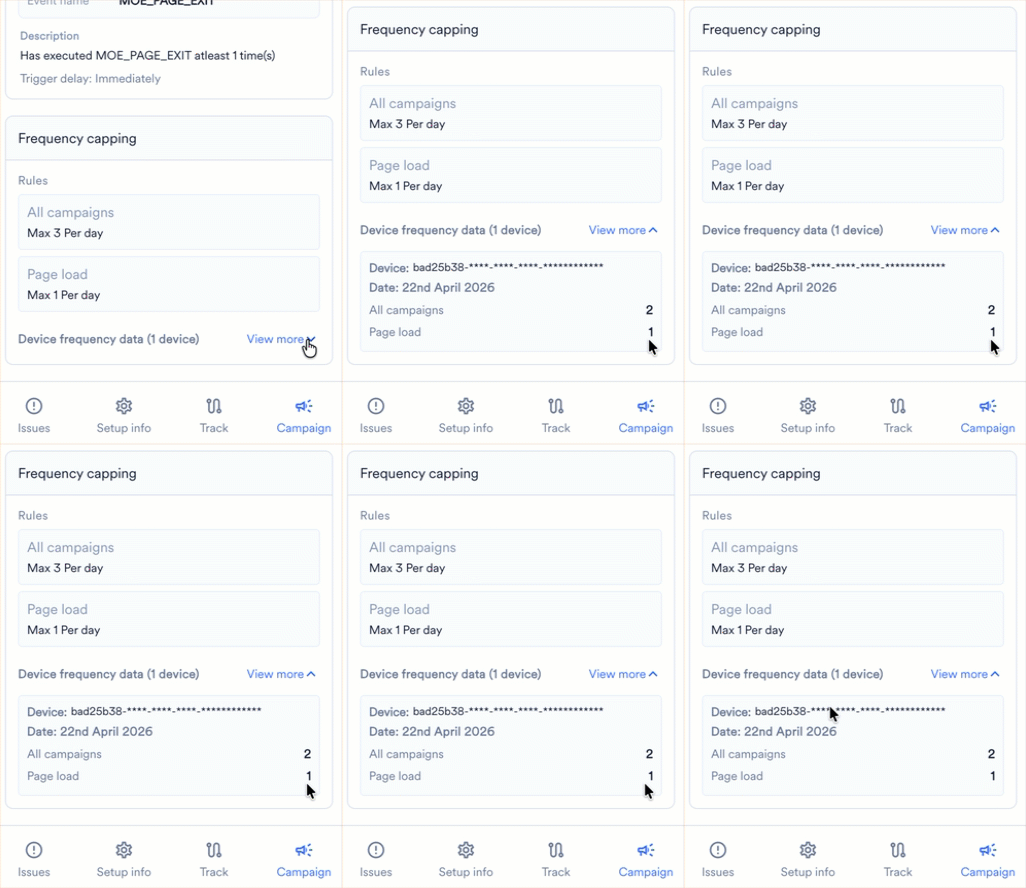
- Frequency capping: Displays the global and page-level limits configured to prevent campaign fatigue.
- Rules: Outlines the maximum permitted displays for All campaigns (for example, Max 3 Per day) and specific Page load constraints.
- Device frequency data: Expand this section to view the specific device’s execution counts against the configured rules. It breaks down consumption for the Last hour (LH) and the current Date.