After integrating HMS in the application and configuring your account in the MoEngage dashboard as mentioned here, please check the guidelines and steps highlighted in this article for verification Pre-conditions for testing HMSDocumentation Index
Fetch the complete documentation index at: https://moengage-getz-tagging-workspace-status.mintlify.app/llms.txt
Use this file to discover all available pages before exploring further.
- Huawei Android devices having EMUI version
Steps to be carried out to verify HMS
Create a campaign on the MoEngage dashboard by selecting the environment i.e TEST/LIVE on the basis of build.- Engage->Campaigns-> Create Campaign->Push Campaign
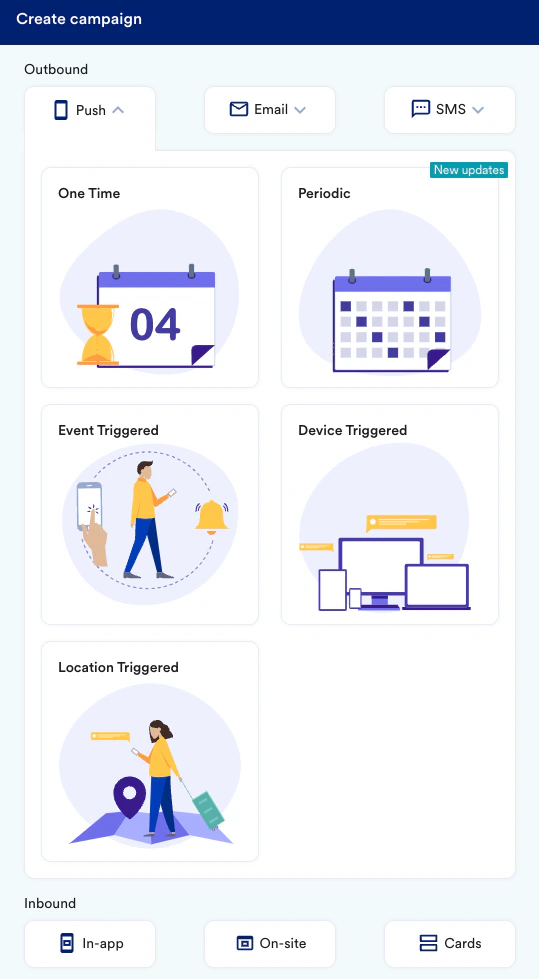
- Create a general campaign
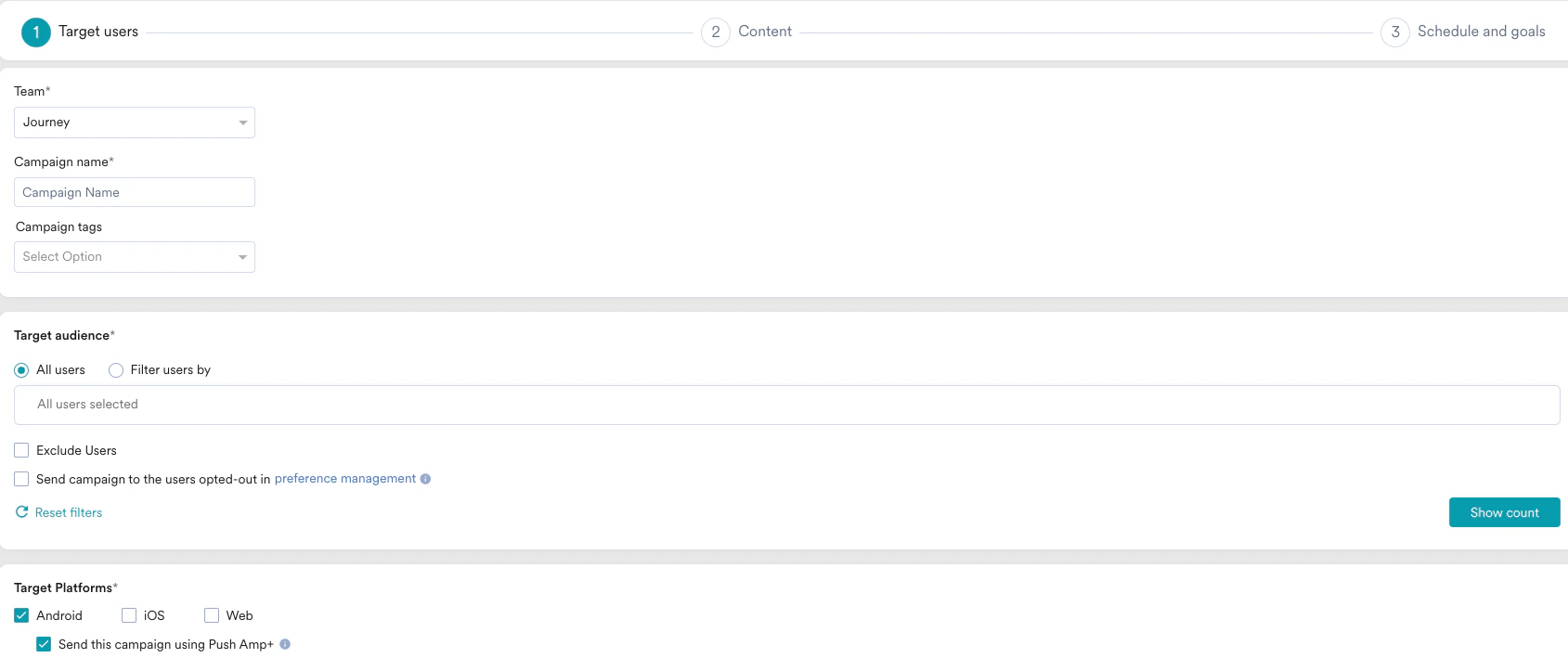
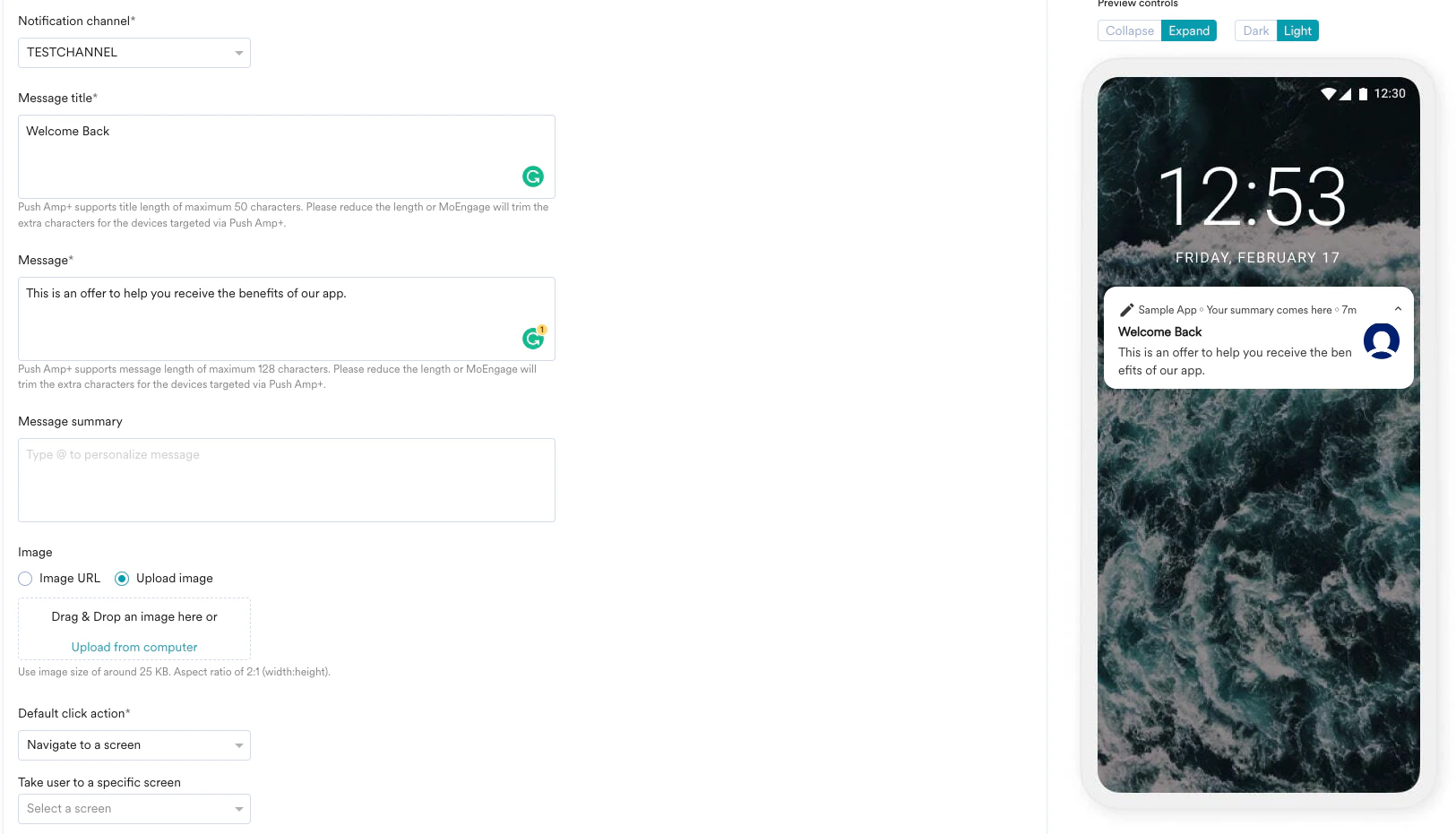
- Click on the TEST CAMPAIGN button to target your device by selecting any of the below attributes to identify the user for testing as shown below.
If you are testing HMS notification using device push token, please make sure the token used for testing should be of FCM not HMS Push Token.

- Once push is received by the app, click on Notification and after that, click on the user as mentioned below and wait for some time(2 to 3 minutes).

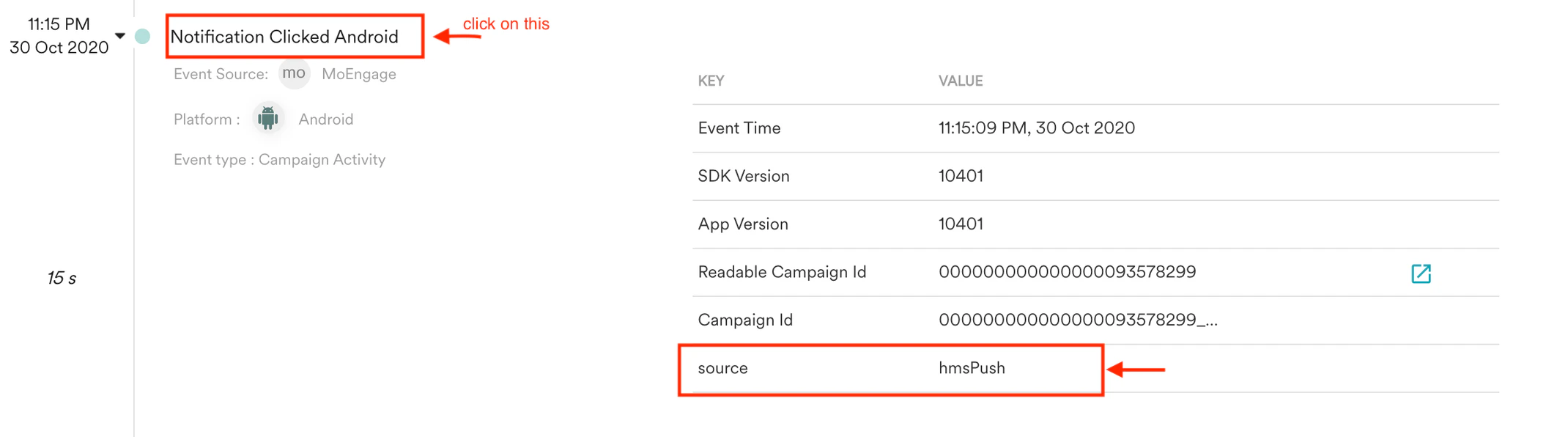
- To identify push is delivered via HMS, click on the event Notification Clicked Android and check for source key with value as hmsPush as shown below. This confirms Push is sent via HMS.