

WhatsApp templates facilitate streamlined communication by helping businesses curate predefined, personalized messages. You can send WhatsApp Messages using MoEngage and use the templates that are already approved or whitelisted (directly or by the WhatsApp Service Provider or BSP) by WhatsApp in the MoEngage Platform.Documentation Index
Fetch the complete documentation index at: https://moengage-getz-tagging-workspace-status.mintlify.app/llms.txt
Use this file to discover all available pages before exploring further.
This feature enables you to improve business efficiency, establish automated notifications, foster better customer engagement across WhatsApp, and help enhance brand trust.
Use cases
- Launching new products? Use the carousel WhatsApp template to showcase the exclusive collection.
- Got a limited-time offer? Set a timer with the Limited Time Offer WhatsApp template, and let customers grab their deal before it’s over.
Add Templates to MoEngage
Ensure that you have access to all the approved WhatsApp templates before adding templates to MoEngage. You can access the templates from the BSP Dashboards.
MoEngage does not validate your templates when you save them. Hence, please ensure they match exactly to your whitelisted templates, or else your campaign may fail because of template mismatch.
-
Navigate to Settings > WhatsApp > + Template.

-
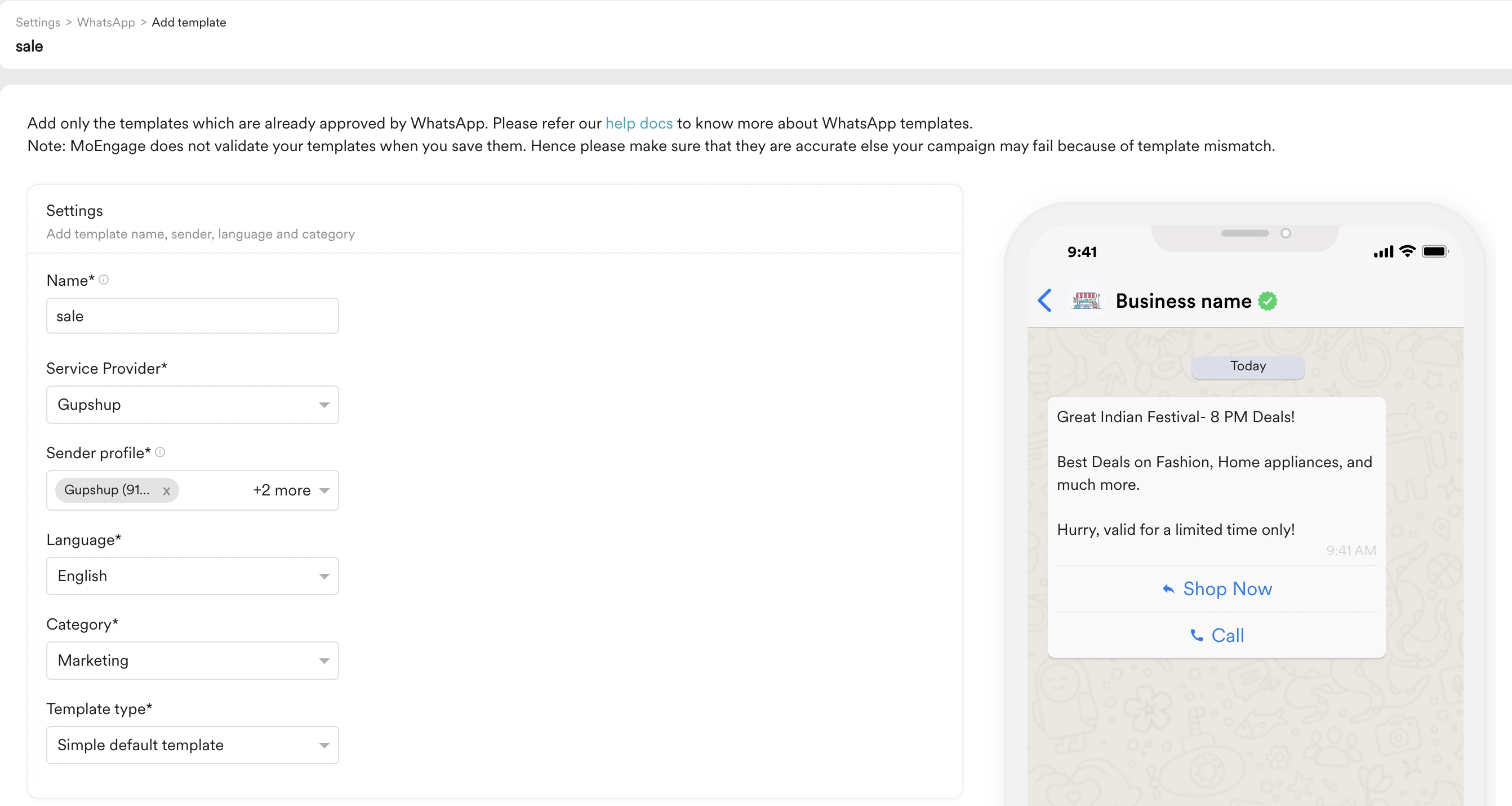
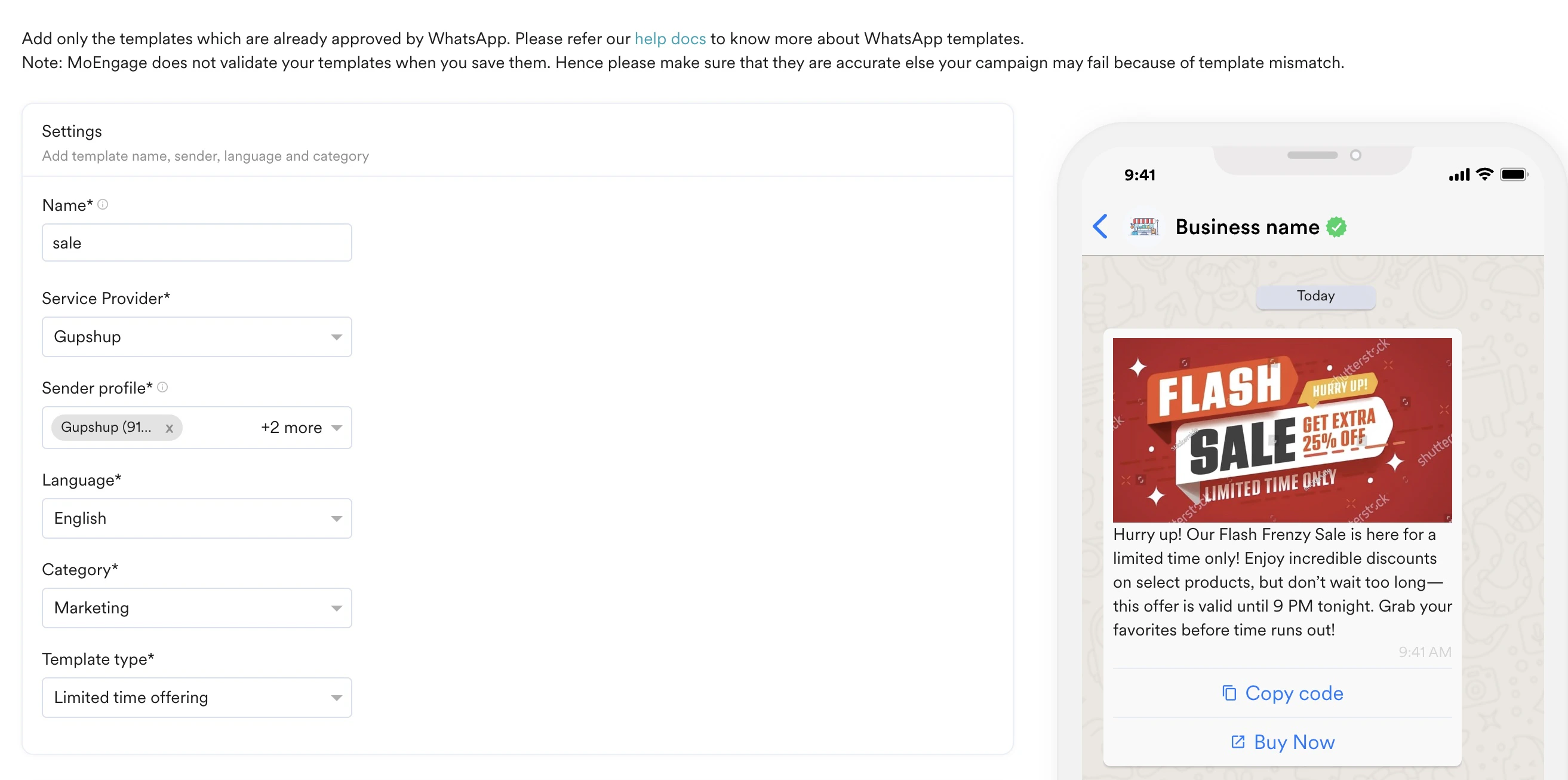
On the Templates page, in the settings section, fill in the fields as suggested below.
 The following options are available in the settings section.
Field Description Name Enter the template name exactly similar to what you have on the BSP side. The name can be up to 100 characters Service Provider Choose the service provider from the dropdown (or your BSP) with which you want to send this templated message. Please know that WhatsApp templates are approved on the WABA level, which can belong to only 1 BSP. So select the BSP with which the template is compatible. Sender Profile Choose the sender profile to with which this template is approved. You can select multiple sender profiles if they are from the same BSP and are under the same WABA. Language Select the language for the template content. This value determines the language of your template. It should be similar to what you have on the BSP/WSP side. Category Select the category type from the dropdown. WhatsApp allows sending messages that belong to one of the following categories: - Marketing
- Utility
- Authentication
Template Type This field is visible only if you have selected the Category field as Marketing. Select the template type from the dropdown menu. - The Carousel, Limited Time Offer, Coupon Code WhatsApp templates, and up to 10 buttons are supported only for GupShup , Karix & Infobip.
-
On the Templates page, in the Content section, fill in the fields as suggested below.
- Carousel Template
- Simple Default Template
- Limited Time Offer Template
Field Description Header Configure the header for your WhatsApp template. This field is optional. Body Configure the body of the template. You can enter up to 1024 characters. Ensure that the body of the template clearly communicates the objective to your audience. Carousel Content You can view this section when the Category field is set as the Carouseltemplate. Media Type Select the type of media you want to display on the carousel card. You can select either an Image or a Video. You can view this section when the Category field is set as the Carouseltemplate. Image Type Upon selecting the media type as image, you can further select the image type as static or dynamic. You can view this section when the Category field is set as the Carousel template. Image Source Specify the image source by either uploading the image directly from your device or linking to an external image source. You can view this section when the Category field is set as the Carousel template. Link to image You can view this field if the Image Source field is set as a Link. You can specify the URL where the image is hosted. Video Type Upon selecting the media type as video, you can further select the video type as static or dynamic. You can view this section when the Category field is set as the Carousel template. Video Source Specify the video source by either uploading the video directly from your device or linking to an external video source. You can view this section when the Category field is set as the Carousel template. Link to video You can view this field if the Video Source field is set as a Link. You can specify the URL where the video is hosted. Card Body You can add up to 10 cards showcasing the content within each card, such as text or media. If you have multiple cards, you can navigate among the cards by using the forward and backward navigation buttons. You can view this section when the Category field is set as the Carousel template. Footer Configure the footer for your WhatsApp template. This field is optional. You can view it when the Category field is set as Simple Default Template. Button(s) You can add CTA buttons in this section. When the Category field is set as Carousel Template, you can add 2 buttons overall. 

Headers
Headers are optional and can be of the following types:- Text (up to 60 characters, can include 1 placeholder)
- Image
- Video
- Document
- Location The non-text header can be static or dynamic. They can use a fixed image or document link or personalized image/document for every user. Dynamic fields will be available for configuration at the time of campaign creation. For more information, refer to Image Personalization.
 Here are supported media types, media formats, and file sizes that MoEngage supports:
| Content-Type | Supported Format and file size |
|---|---|
| Image | The supported image types are JPG, JPEG, PNG. The maximum file size is 5MB. |
| Document | The supported document type is PDF. The maximum document size is 5MB. |
| Video | The supported file types are MP4, 3GPP. The maximum file size is 15MB. |
- Once configured, select Save in the lower-right corner of the screen.
Template Management
To manage all your WhatsApp Templates, go to MoEngage Dashboard -> Settings -> WhatsApp -> Approved Templates. Once a template is added, you can manage your templates depending on if they are in use or not by a campaign.| Template Usage | Allowed Template Actions |
|---|---|
| Template not being used inside any campaign | View, Edit, Duplicate, Delete |
| Template being used inside any campaign | View, Duplicate |
Sync Templates from Vendors to MoEngage
MoEngage enables you to sync templates from configured partners to the MoEngage platform. Syncing templates will automatically retrieve all updated templates from the partner portals since the last updated time. To sync templates:- Go to MoEngage Dashboard > Settings > WhatsApp > Approved templates.
- Click Sync Template in the top right of the Approved templates tab.

- Sync successful: All templates from connectors are synced to MoEngage successfully. You can see the summary of successful changes and also view the templates based on last updated time.
- Sync failure: Templates sync from connectors to MoEngage failed. You can see the reasons for unsuccessful sync.
- Mixed sync results: Templates sync from connectors to MoEngage is partially successful. For templates that are synced successfully, you can see the summary of successful changes; for templates that failed to sync, you can see the reasons for failures.
| Status | Description | Next Possible Actions |
|---|---|---|
| Created | The template you created on the vendor portal is submitted for approval, but Meta is yet to approve it. Meta can approve or reject the template. | You can create WhatsApp campaigns using this template. |
| Approved | The template you created on the vendor portal is approved by Meta. | You can use the approved template to create WhatsApp campaigns. |
| Rejected | The template you created on the vendor portal is rejected by Meta. | You cannot use the rejected template to create WhatsApp campaigns. When you edit a rejected template in MoEngage and save it, it will move to the Manually approved state. If the template is not exactly the same as the template on the vendor portal and you create WhatsApp campaigns using this template, the campaign creation will fail because of template mismatch. You must:
|
| Suspended | After the initial sync of templates from the vendor portal to MoEngage, during subsequent sync:
| Click the ellipsis icon () and select View usage. The Active campaigns pop-up is displayed showing the campaigns created using this template.
|
| Manually approved | When you edit a template in MoEngage and save it, it will move to the Manually approved state. If the template is not exactly the same as the template on the vendor portal and you create WhatsApp campaigns using this template, the campaign creation will fail because of template mismatch. | You must update the template in MoEngage to ensure that the content matches the content in the template in the vendor portal exactly. |
- Currently, you can sync templates from Gupshup and Karix. It might take up to 15 mins to complete the sync.
- For every sync, it will be synced for templates updated in the last 2 days.
Manage WhatsApp Template Suspension Alerts
When syncing WhatsApp templates from your vendor to MoEngage, templates can carry various statuses: Created, Approved, Rejected, or Suspended. A template enters a Suspended status when there is a content mismatch between the vendor dashboard and MoEngage. To ensure your communication remains uninterrupted, MoEngage provides real-time alerts to notify you the moment a template suspension occurs.Why Set Up Suspension Alerts?
Previously, users might not have been aware when a template moved to a suspended state, leading to failed campaigns. With these alerts, you can:- Identify Impacted Campaigns: Immediately see which active campaigns are using the suspended template.
- Minimize Downtime: Take swift action to fix the template at the vendor level or swap it in your MoEngage campaigns.
- Receive Multi-Channel Notifications: Get alerts where your team already works (Slack, Teams, Email, or Webhooks).
Configure Suspension Alerts
To create an alert for WhatsApp template suspensions:- On the left navigation menu in the MoEngage dashboard, go to Settings > Reports and Alerts > Alert Management.
- On the Alert management page, click + Create alert.
- On the Create alert page, enter the following details:
- Alert name: Provide a name for the alert.
- Create Alerts On: Select
WhatsApp Template Suspensionfrom the list. - Send Alert On: Select the notification channels through which the alert should be sent.
- Add alert destination: Configure external destinations to receive alerts via Slack, MS Teams, or a custom Webhook.
- Members: Add the members who should receive this alert.
- Click Create to create the alert.
Understanding the Alert Notification
When a template is suspended, the alert provides the following essential information:- Template Details: Includes Template Name, Language, and Sender/Provider name.
- Timestamp: The exact time of suspension, displayed in your App Time Zone (e.g., New York Time).
- Active Campaign Visibility: A list of all campaigns currently utilizing the suspended template. This includes:
- One-time Scheduled campaigns
- Periodic campaigns
- Event-triggered campaigns
- Flows
Campaigns sent as soon as possible after creation will not be listed, as the alert focuses on currently active/future-dated impacts.
Handling Template Failures
If you attempt to send a campaign using a template that has been suspended, the campaign logs will reflect a failure reason:Failed to send due to template was suspended.
If you encounter this error within a campaign, MoEngage provides a direct shortcut from the campaign interface to Create an Alert, ensuring you are notified of future occurrences for that specific template.