

Documentation Index
Fetch the complete documentation index at: https://moengage-getz-tagging-workspace-status.mintlify.app/llms.txt
Use this file to discover all available pages before exploring further.
Overview
The Notification Update feature updates an existing push notification in the users’ notification drawer by sending a new notification with the same Update key. This feature helps keep notifications relevant and prevents clutter.Use Cases
The following are some use cases for this feature:- Order tracking: Update users with the latest delivery status of their package by overriding the initial shipment confirmation message using the order ID.
- E-commerce: If a user is eligible for multiple offers that can’t be combined, you can use a selection key. This ensures the user sees only one relevant offer at a time, preventing confusion and making their shopping experience smooth and clear.
- Media and entertainment: You can update a breaking news alert with the latest confirmed details after the initial notification.
- Travel and hospitality: You can update gate change information for a flight directly within the initial boarding reminder notification. For more information, refer here.
- Gaming: Inform players of an unscheduled server maintenance update, overriding the initial event reminder.
How Notification Update Works
Perform the following steps to update your push notifications:- In the second step of push campaign creation, Content, expand the Advanced tab.
- In the Update key field under the Advanced section, enter a unique string value.
- This field accepts a single input string.
- It supports personalization.
- MoEngage automatically modifies the update key to ensure it does not exceed the 45-character limit. It removes non-Latin scripts, special characters, and spaces to restrict the key composition to ASCII characters exclusively.
- This update ID will be used to identify and update related push notifications. Ensure you use the same update ID for all push notifications intended to update each other.
- Complete the remaining steps of the push campaign creation process and send your campaign.
Example
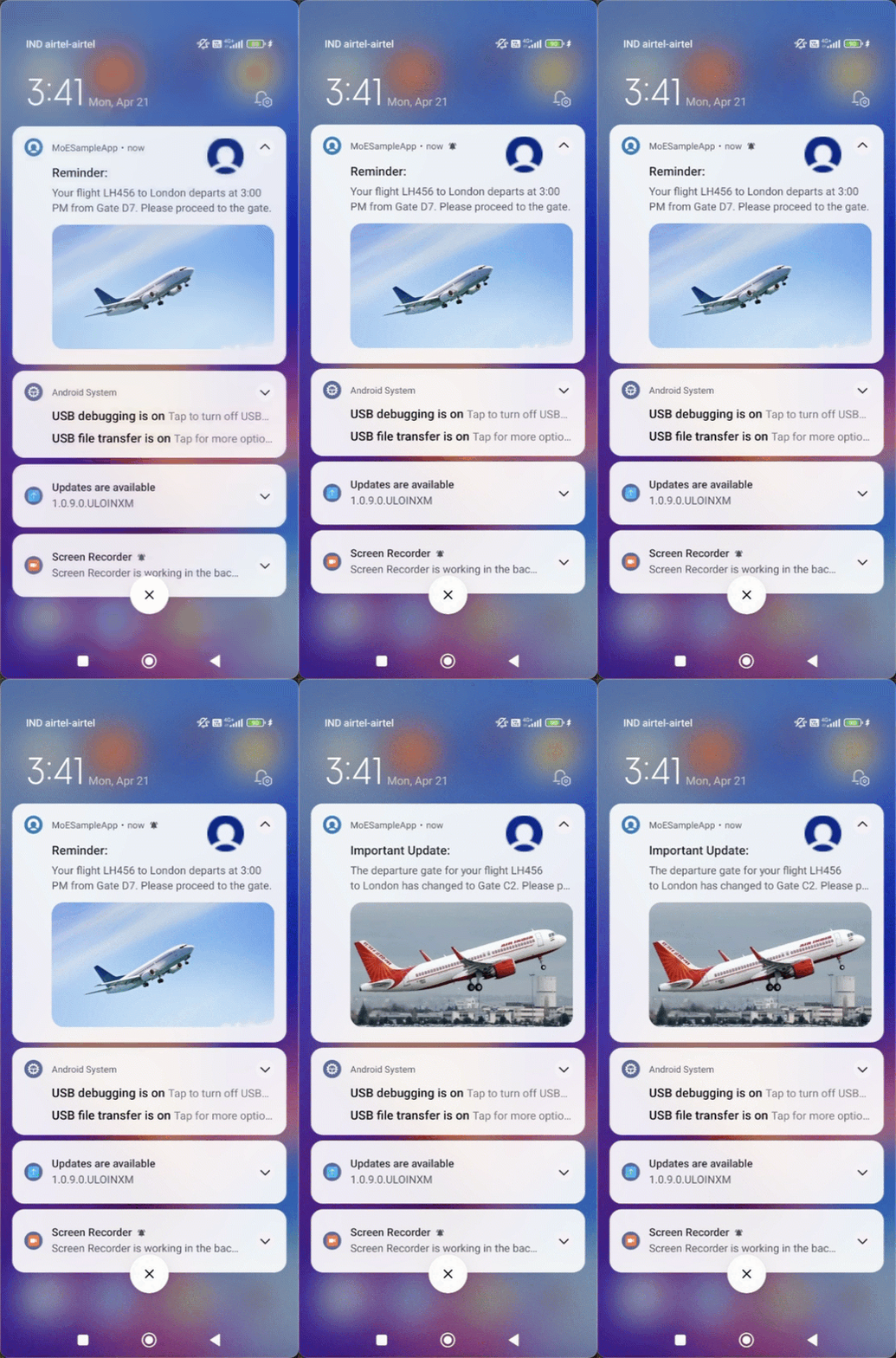
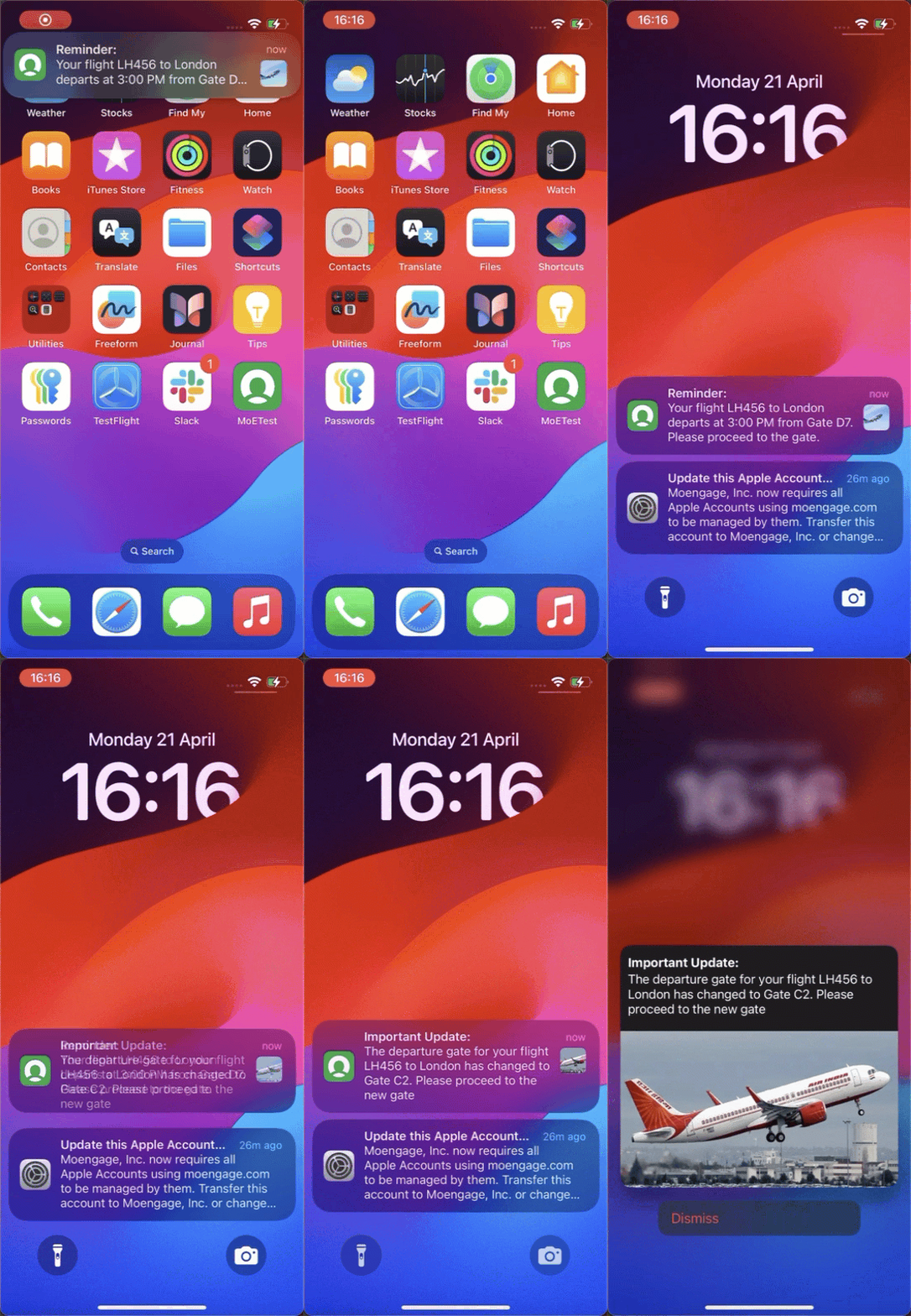
We will create a Push campaign for a new app called MoEngage Travels. This app wants to send push notifications to update the gate information for a flight directly within the initial boarding reminder notification sent to passengers departing from London International Airport. Scenario (Flight LH456 departure):- Initial boarding reminder (sent 2 hours before departure):
- Content: Reminder: Your flight LH456 to London departs at 3:00 PM from Gate D7. Please proceed to the gate.
- Update key: flightlh456update
- Gate change update (sent 1 hour before departure):
- Content: Important Update: The departure gate for your flight LH456 to London has changed to Gate C2. Please proceed to the new gate.
- Update key: flightlh456update
Outcome
The Push campaign for the MoEngage Travels app successfully updated the initial boarding reminder notification with the new gate information for flight LH 456. Using the same update key (flightlh456update), the gate change message updated the initial notification, ensuring passengers receive accurate and timely updates without duplication.| Android | iOS |
|---|---|
 |  |
On Device Behavior
In Android
- Update behavior:
- If a new notification (B) with the same update key as an existing notification (A) arrives, if B’s sent time is greater than A’s sent time, B replaces A. Otherwise, B is discarded.
- If two notifications with the same update key arrive simultaneously, only the latest one is shown.
- The Notification Received event: The value of the update key appears as an event attribute named Update Key.
- User experience:
- A slight flicker may occur when a notification updates.
- Notification sounds, alerts, and channel settings remain unchanged.
- Notifications are not replaced in the Push Notification Center or Self-Handled Notification Center, but the update key and sent time are included in the payload.
- Notification update works independently of Notification Grouping.
In iOS
- Update behavior: iOS updates notifications with the same update key.
- The Notification Received event: The value of the update key appears as an event attribute named Update Key.
- Notifications are not replaced in the Push Notification Center or Self-Handled Notification Center, but the update key is included in the payload.
- Notification update works independently of Notification Grouping.
FAQs
Does replacing a notification affect analytics?
Does replacing a notification affect analytics?
No, replacing a notification does not affect analytics. Impressions are still counted for replaced notifications, and clicks on replaced notifications are attributed to the most recent campaign.
Can I replace notifications in the Push inbox?
Can I replace notifications in the Push inbox?
No, Push inbox and Self-handled inbox retain all notifications, but the update key is included in the payload.
Does the notification update affect sounds or alerts?
Does the notification update affect sounds or alerts?
The update key does not affect notification sounds, alerts, or channel settings.
Do I need special permissions to update the notification?
Do I need special permissions to update the notification?
No, notification update is part of the standard campaign creation process and does not require additional permissions.
Will the notification update have any impact on my campaign interactions?
Will the notification update have any impact on my campaign interactions?
Yes. When a notification is replaced, undelivered notifications are dropped by FCM/APNS, which may reduce campaign impressions. Users will see only one notification at a time, potentially leading to fewer clicks.
Do all push templates support the Notification Update feature?
Do all push templates support the Notification Update feature?
Yes, the Notification Update feature is compatible with all push templates. For instance, a notification using the Timer template can replace a notification that uses the Image Banner template.
Why do I only see one notification in the notification drawer when I have used two different update keys in two campaigns?
Why do I only see one notification in the notification drawer when I have used two different update keys in two campaigns?
This happens because the
ismultiplenotificationsindrawer config is set to false. In this case, the latest notification replaces the previous one, ensuring that only one notification remains visible, regardless of the group key and update key configurations.Best Practices
- Use unique update keys to prevent unintended notification updation.
- Test your push campaigns before launching to ensure notifications behave as expected.
- Monitor analytics to track notification performance.
- Combine with notification grouping for a more organized user experience.