

Documentation Index
Fetch the complete documentation index at: https://moengage-getz-tagging-workspace-status.mintlify.app/llms.txt
Use this file to discover all available pages before exploring further.
Overview
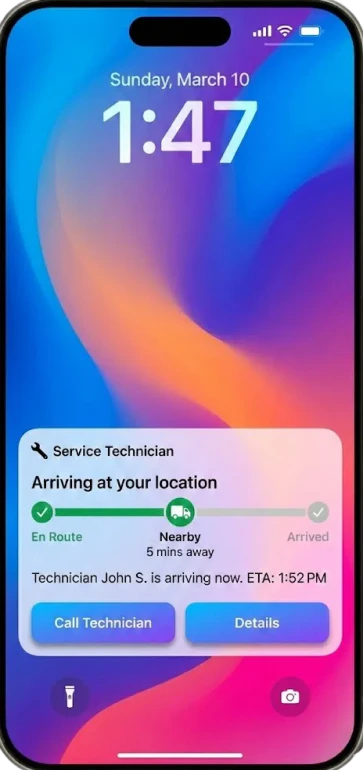
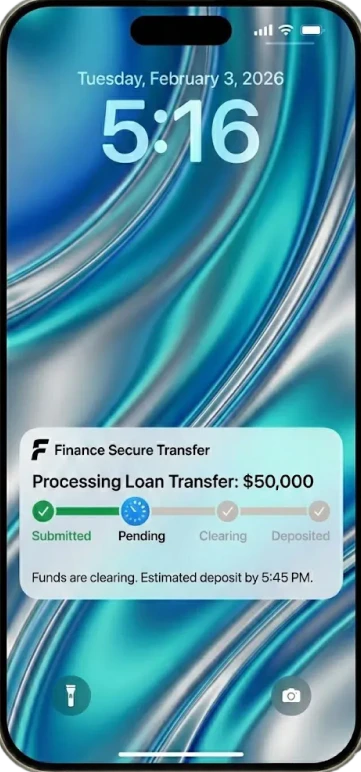
MoEngage Transactional Live Activities provide real-time, 1:1 updates on the iPhone Lock Screen and Dynamic Island. Unlike Broadcast Live Activities, which send the same update to many users, Transactional Live Activities deliver personalized updates for time-sensitive user journeys. This feature informs users about food delivery tracking, ride-hailing status, or service appointments without requiring them to unlock their phone or open the app. This article explains how to use MoEngage Inform to create, manage, and analyze these real-time experiences for your transactional use cases.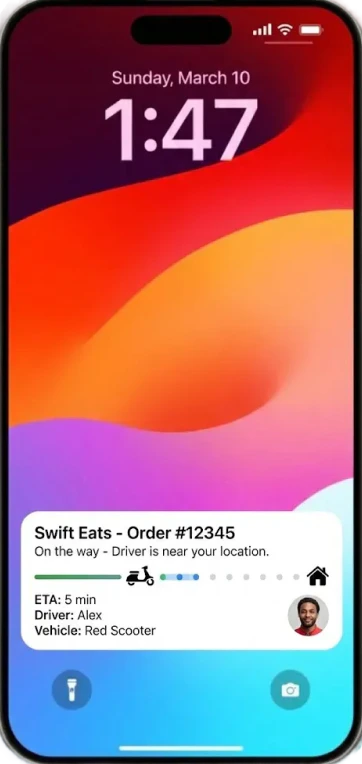
- iOS
- iPad OS
- Watch OS
Use Cases
Transactional Live Activities enable various real-time service and engagement scenarios:- Delivery and Logistics: Show real-time order status, driver location, and estimated time of arrival (ETA) for food or package deliveries.
- Service Appointments: Track the arrival of a technician or service provider (e.g., plumber, electrician).
- Ride Hailing: Display driver details, car make/model, and arrival countdowns.
- Finance: Visualize the status of a time-sensitive transfer, loan processing step, or authentication request.
How Transactional Live Activities Work
Transactional Live Activities display dynamic updates from ongoing events. The system delivers event-based notifications and allows users to track progress directly from their Lock Screen or Notification Center.User Interaction and UI
- Opt-in: Unlike Broadcast activities, where a user explicitly follows an event, users typically initiate Transactional activities through an action, whether within the app (e.g., placing an order or booking a cab) or outside the app (e.g., initiating offline KYC).
- Display: The activity appears on the Lock Screen and in the Dynamic Island. A long press on the Dynamic Island expands the view.
- UI: Your development team customizes the interface, which updates in real time with text, images, and progress indicators based on data sent via MoEngage.
Permissions
Live Activities use a separate permission from push notifications. This permission is turned on by default when users install the app. iOS regularly monitors whether Live Activities remain relevant. If a user rarely interacts with them, they might see an option to turn them off. End users must perform the following steps to manage this setting:- Open Settings on their device.
- Scroll down and select [App Name].
- Tap Live Activities.
- Toggle the setting on or off.
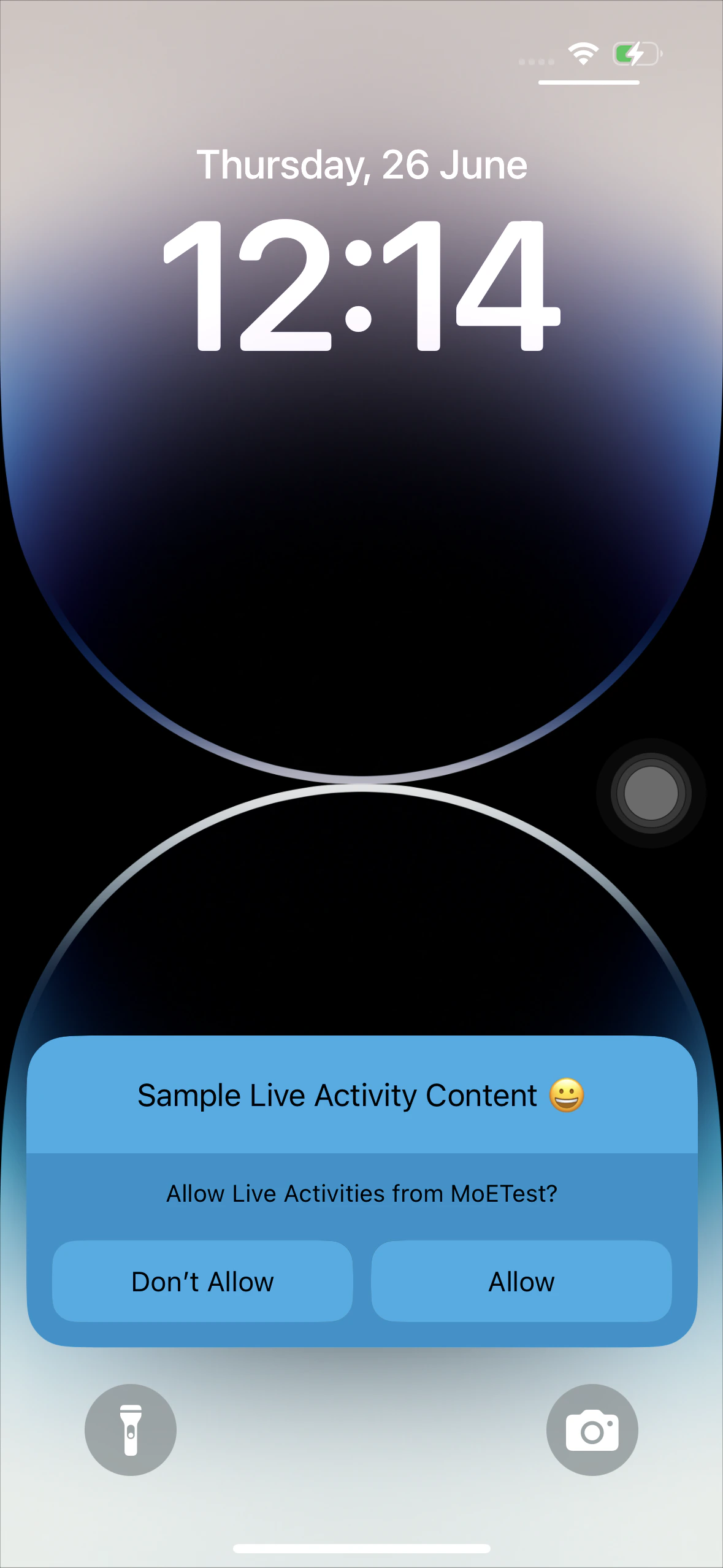
- MoEngage tracks Live Activity PTS tokens and permission statuses as device attributes.
- The MoEngage SDK automatically monitors and updates the Live Activity permission status as a device attribute. This check occurs each time the app is opened in the foreground.
- Events such as Unsubscribed to Live activity and Subscribed to Live activity are triggered when this permission status changes (the initial permission grant does not trigger Subscribed to Live activity as it is the default state).
- This feature is not tied to push notification permissions; it is granted by default. The iOS system regularly reviews the usage of Live Activities, and users can disable them at any time.
Lifecycle of a Transactional Live Activity
Managing the lifecycle of a Live Activity ensures users receive timely information without screen clutter. Here is how the stages work in practice:- Start (Initiation)
A live activity can be initiated in two ways:- You or your developer can initiate a Live Activity remotely via the Inform API (Server-side).
- The end user can initiate it locally from their device (e.g., immediately upon a button tap). This uses the App SDK in the backend.
- Update (Real-Time Status)
As the event progresses, you send updates to refresh the data on the screen. Updates must be performed exclusively via the Inform API.
Even if the end user started an activity locally via the app, only you or your developer can update it via the API once the token is synced.
- End (Completion)
When the transaction concludes, you must end the activity to remove it from the user’s screen. You or your developer must end the activity exclusively via the Inform API; otherwise, it will be terminated automatically upon reaching the configureddismissal_date.
Example: The user collects their coffee. Your backend triggers an End API call. The widget displays “Enjoy your coffee!” and then disappears from the screen based on the dismissal time logic.
“Transaction ID” is the key attribute for a live activity for its entire lifecycle. In the example of placing a coffee order, if the order ID is 123, you must use the same transaction ID (123) in the start, update, and end requests to ensure that the same live activity is managed.
Types of Transactional Live Activities
MoEngage Inform supports two message types (supported only for iOS) for handling delivery and user reachability:- Live Activity Only
- Live Activity with Push Fallback
In this mode, the system attempts to start a Live Activity. If the user is ineligible (e.g., missing PTS token), the request fails, and no notification is shown.Example Scenario: A user orders a meal through a food delivery app and has a valid token.
| Time | Order Status | System Actions (Inform API) | Widget State |
|---|---|---|---|
| 7:00 PM | Order Placed | Trigger Start API with transaction_id: "order_123" | The widget appears on the Lock Screen displaying “Preparing your food.” |
| 7:20 PM | Picked Up | Trigger Update API with transaction_id: "order_123" | The widget updates to display “Driver is on the way.” |
| 7:40 PM | Delivered | Trigger End API with transaction_id: "order_123" | The widget displays “Enjoy your meal!” and is dismissed automatically. |
Step-by-Step Instructions for Using MoEngage Live Activities
This section details how to set up and utilize MoEngage Transactional Live Activities. You must understand these steps to collaborate effectively with your development teams during implementation.Step 1: Live Activity Registration and PTS Token Management (iOS App Developer Task)
Your application development team must configure Live Activities initially. For more information, refer here.- Enable Live Activity Token Tracking:
App developers must enable the tracking of Push-to-Start (PTS) tokens. Inform requires these tokens to initiate a Live Activity through the API. - Choose Token Registration Method:
Developers have two options for managing PTS token registration:- Allow the MoEngage SDK to automatically handle PTS token registration and updates.
- Implement a self-handled PTS token registration process and pass the generated PTS token to the MoEngage SDK.
- Define Widget Attribute Types:
For each distinct Live Activity widget (e.g.,order_tracking,ride_status), developers must assign a unique Attribute Type. You will use this identifier in your Inform campaign to target the intended widget.
- MoEngage tracks Live Activity PTS tokens and permission statuses as device attributes.
- The MoEngage SDK automatically monitors and updates the Live Activity permission status as a device attribute.
Step 2: Create Inform Campaign (Marketer Task)
Unlike Broadcast campaigns, Transactional Live Activities require a configured template in the Inform dashboard before you trigger them. For more information, refer to Create Alert.Step 3: Send Live Activities via API (Developer Task)
Once you configure the Inform campaign, your backend development team can use the Inform API to trigger real-time updates. For more information, refer to the Inform API.- Initiate a Live Activity:
Send an API request to MoEngage including thelive_activity_attributesobject withla_type = "start"to initiate a Live Activity for a specific user. Include a uniquetransaction_idand the required personalization attributes. - Update an Ongoing Live Activity:
To update an active Live Activity, send an API request withla_type = "update"insidelive_activity_attributes, using the sametransaction_id. Include the new dynamic content in the request. - End a Live Activity:
To stop a Live Activity, send an API request withla_type = "end"insidelive_activity_attributes, using the sametransaction_id. Live Activities also terminate automatically upon reaching the specifieddismissal_date.
Step 4: Analyze Live Activity Performance in the MoEngage UI
You can track and analyze the performance of your Transactional Live Activity campaigns in the MoEngage Inform Analytics dashboard. This view provides a comprehensive breakdown of delivery funnels, errors, and user engagement metrics. For more info, refer to Analyze Inform.- Event Tracking: The system tracks successful initiations on the device via the
MOE\_LIVE\_ACTIVITY\_STARTEDSDK event. However, Update and End requests do not generate device-level confirmation events; their success is measured by the Sent metric (APNs acceptance). - Logs: Live Activity requests in the Inform UI logs will show DELIVERY INFO NA, as the system does not track granular delivery status for individual update/end API calls.
FAQs
When does the Fallback Push Notification trigger?
When does the Fallback Push Notification trigger?
The fallback push notification is triggered when the tokens required to deliver a Live Activity are unavailable. This behavior applies in the following scenarios:
- Start Requests: When a valid Push-to-Start (PTS) token is unavailable for the user (for example, if the device is running an unsupported iOS version or the token has not synced).
- Update/End Requests: When the start request with the same transaction ID did not result in a successful request to start live activity with APNS.
Can I update a Live Activity locally from the app code?
Can I update a Live Activity locally from the app code?
No. A transactional live activity started via MoEngage integration can only be updated or ended via the Inform API.
Does MoEngage retry failed Live Activity requests?
Does MoEngage retry failed Live Activity requests?
No. MoEngage does not perform asynchronous retries for Live Activity requests, as the iOS push client handles immediate retries for delivery.
What versions of iOS are required for users to see MoEngage Live Activities?
What versions of iOS are required for users to see MoEngage Live Activities?
End users must have iOS 18 or a later version installed on their devices to view Live Activities sent through MoEngage.
Do I need to build the UI widget in the MoEngage Dashboard?
Do I need to build the UI widget in the MoEngage Dashboard?
No. MoEngage acts as the data pipeline. Your iOS developers build the visual design of the widget using SwiftUI within the app. You map data to that widget using the Attribute Type and Key-Value pairs in the MoEngage Dashboard.
Is A/B testing supported for MoEngage Live Activities?
Is A/B testing supported for MoEngage Live Activities?
A/B testing is not supported for Live Activities in the current version. This also applies to other advanced features like Locales, Global Control Group, and Campaign Control Group.
How are PTS tokens for Live Activities managed?
How are PTS tokens for Live Activities managed?
Your app developers can either allow the MoEngage SDK to manage PTS token registration and maintenance automatically or handle this process themselves and then pass the token to the SDK. MoEngage tracks the PTS token as a device attribute.
What is a staleDate?
What is a staleDate?
A staleDate is the time when the system marks your activity’s content as outdated. When reached, the UI can change to a stale state, like grayed-out text or a message such as “Update needed.” The activity remains visible and active but signals that the information may no longer be current.
What is a dismissDate?
What is a dismissDate?
A dismissDate is the time you set for the Operating system to automatically remove a Live Activity from the Lock Screen and Dynamic Island. The system dismisses a Live Activity when:
- The user swipes it away.
- The dismissDate is reached. By default, the system dismisses it 4 hours after the Live Activity ends or 12 hours after it starts.
What’s the difference between staleDate and dismissDate?
What’s the difference between staleDate and dismissDate?
A staleDate triggers a UI change to indicate outdated content, while a dismissDate removes the activity entirely. The staleDate keeps the activity visible but with a different look, whereas the dismissDate ends and dismisses it from the screen.
What is the total lifespan of a Live Activity?
What is the total lifespan of a Live Activity?
A Live Activity runs for a total of 12 hours, with up to 8 hours of active updates and up to 4 hours of post-end activity without updates. After that, the system automatically removes it.
Next Steps
- For SDK integration guides and updates on Live Activity support, refer to the MoEngage SDK Documentation.
- For API payload specifications, refer to the Inform API Documentation.
- For creating an Inform campaign, refer to Create Alert.